---
title: "MOTO payments through API"
description: "Make API requests to make Mail Order/Telephone Order (MOTO) payments."
url: "https://docs.adyen.com/unified-commerce/mail-order-telephone-order/api-request"
source_url: "https://docs.adyen.com/unified-commerce/mail-order-telephone-order/api-request.md"
canonical: "https://docs.adyen.com/unified-commerce/mail-order-telephone-order/api-request"
last_modified: "2026-05-24T12:54:31+02:00"
language: "en"
---
# MOTO payments through API
Make API requests to make Mail Order/Telephone Order (MOTO) payments.
[View source](/unified-commerce/mail-order-telephone-order/api-request.md)
You can make an API request to initiate a MOTO payment and use Web Drop-in to enter the shopper's payment details in your UI.
For example: when a shopper calls your call center, your user (for example, an agent in your call center) enters the shopper's card details in the Drop-in payment form and submits the payment.
## Requirements
| Requirement | Description |
| ------------------------------------------------------------------------- | ----------------------------------------------------------------------------------------------------------------------------------------------------- |
| **Setup steps** | Before you begin:- [Get your API key.](/development-resources/api-credentials#generate-api-key) |
| **[API credential roles](/development-resources/api-credentials/roles/)** | Make sure that you have the following roles- **Merchant PAL webservice role**
- **Checkout webservice role**
- **Checkout encrypted cardholder data** |
| **[Webhooks](/development-resources/webhooks)** | Subscribe to the following webhook:- [Standard webhook](/development-resources/webhooks/webhook-types/#event-codes) |
## How it works
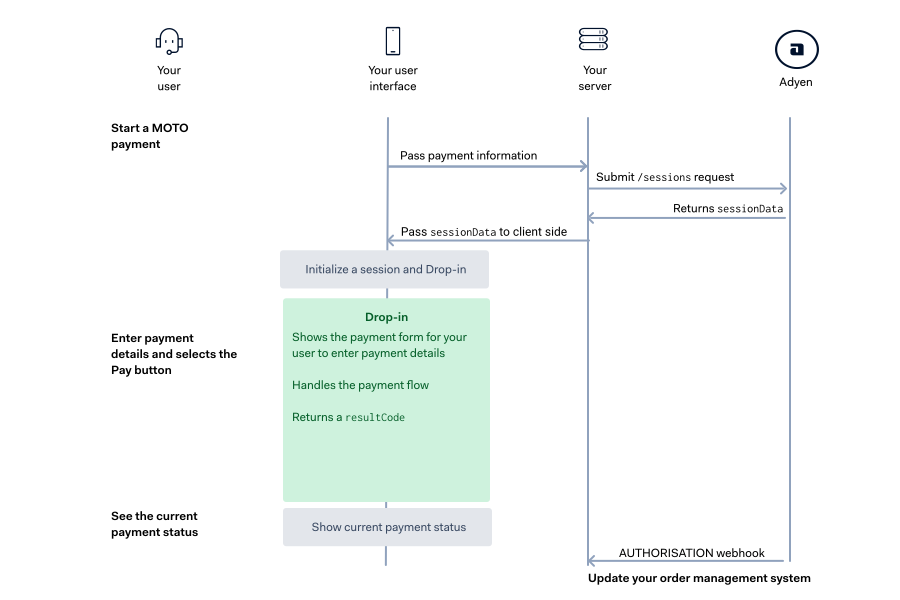
Use the Checkout API to initiate a payment session and enter the shopper's payment details in the Drop-in payment form.
1. Your shopper contacts you to initiate a MOTO payment.
2. Your user (for example, an agent in your call center) goes to your UI for MOTO payments.
3. Your user enters the payment amount and other required information in your UI.
4. Your UI application passes the payment amount and other required information to your server.
5. Your server makes an API request to create a payment session.
6. Your UI application creates an instance of Drop-in using the session data from the server.
7. Drop-in shows the payment form.
8. Your user enters the shopper's payment details in the payment form and submits the payment.
9. Your webhook server receives the webhook containing the payment outcome.
[](/user/pages/docs/06.unified-commerce/09.mail-order-telephone-order/01.api-request/moto-drop-in.svg)
## Create a session
Create the payment session resource that includes payment amount information.
To create a payment session, make a [/sessions](https://docs.adyen.com/api-explorer/Checkout/latest/post/sessions) request, including:
| Parameter name | Required | Description |
| ------------------------------------------------------------------------------------------------------------------ | ------------------------------------------------------------------------------------------- | ------------------------------------------------------------------------------------------------------------------------------------------------------------------------------------------------------------------------------------------------------------ |
| [amount](https://docs.adyen.com/api-explorer/Checkout/latest/post/sessions#request-amount) |  | The `currency` and `value` of the payment, in [minor units](/development-resources/currency-codes). This is used to filter the list of available payment methods to your shopper. |
| [shopperInteraction](https://docs.adyen.com/api-explorer/Checkout/latest/post/sessions#request-shopperInteraction) |  | Set to **Moto**. This indicates that this is a MOTO payment. |
| `allowedPaymentMethods` |  | Set to **scheme**. This indicates that this is a card payment. |
| `merchantAccount` |  | Your merchant account name. |
| `reference` |  | Your unique reference for the payment. Minimum length: three characters. |
| `returnUrl` |  | URL where your user should be taken back to, in case of a redirection. Format: - Maximum of 1024 characters - Must include the protocol: `http://` or `https://`. You can also include your own additional query parameters like the order reference number. |
The following example shows how to create a session for a payment of **10** EUR.
**Example /sessions request for a MOTO payment**
```bash
curl https://checkout-test.adyen.com/v71/sessions \
-H 'x-api-key: ADYEN_API_KEY' \
-H "idempotency-key: YOUR_IDEMPOTENCY_KEY" \
-H 'content-type: application/json' \
-d '{
"amount": {
"value": 1000,
"currency": "EUR"
},
"shopperInteraction": "MOTO",
"allowedPaymentMethods":"scheme",
"merchantAccount": "ADYEN_MERCHANT_ACCOUNT",
"returnUrl": "https://your-company.example.com/motoUI?motoOrder=12xy..",
"reference": "YOUR_PAYMENT_REFERENCE"
}'
```
The response contains:
* `sessionData`: the payment session data you need to pass to your front end.
* `id`: a unique identifier for the session data.
* The request body.
**Example HTTP 201 /sessions response**
```json
{
"amount": {
"currency": "EUR",
"value": 1000
},
"countryCode": "NL",
"expiresAt": "2024-08-24T13:35:16+02:00",
"id": "CSD9CAC34EBAE225DD",
"merchantAccount": "YOUR_MERCHANT_ACCOUNT",
"reference": "YOUR_PAYMENT_REFERENCE",
"returnUrl": "https://your-company.example.com/motoUI?motoOrder=12xy..",
"sessionData": "Ab02b4c.."
}
```
If you do not get an HTTP 201 response, use the `errorCode` field and the list of [API error codes](/development-resources/error-codes) to troubleshoot.
## Prepare your front end
Use Drop-in to show the payment form in your UI, where you enter the shopper's payment details.
### Install Adyen Web
Use the Adyen Web npm package, or embed the Adyen Web script and stylesheet into your HTML file:
### Tab: npm (recommended)
Install the [Adyen Web Node package](https://www.npmjs.com/package/@adyen/adyen-web):
```bash
npm install @adyen/adyen-web --save
```
Import Adyen Web with the resources for card payments into your application.
```js
import { AdyenCheckout, Card } from '@adyen/adyen-web';
import '@adyen/adyen-web/styles/adyen.css';
```
### Tab: Embed script and stylesheet
Use the `integrity` attribute so browsers can verify that the script and stylesheet have not been changed unexpectedly.
The value of the `integrity` attribute is the [Subresource Integrity (SRI) hash](/online-payments/web-best-practices#implement-subresource-integrity-hashes) which Adyen provides for each version of the Adyen Web JavaScript and CSS files.
Get the SRI hashes in the [release notes](/online-payments/release-notes?integration_type=web), under **Updating to this version**.
**checkout.html**
```html
```
Drop-in resources are available on the `window` global variable.
### Create a DOM element for Drop-in
Create a [Document Object Model (DOM)](https://developer.mozilla.org/en-US/docs/Web/API/Document_Object_Model/Introduction) container element on your page where you want to render Drop-in. We recommend that you include a descriptive `id`.
We strongly recommend that you do not put it in an [iframe element](https://developer.mozilla.org/en-US/docs/Web/HTML/Element/iframe), because it may cause issues.
**Create a DOM element**
```html
```
If you are using JavaScript frameworks such as Vue or React, make sure that you use references instead of selectors and that you do not re-render the DOM element.
## Create Drop-in
Drop-in consists of:
* `AdyenCheckout`: represents one payment [session](#create-payment-session).
* `Dropin`: represents the interface where a shopper completes their payment.
With the `AdyenCheckout` instance, you can create a `Dropin` instance.
### Create your instance of AdyenCheckout
Create a global configuration object that you use to create the instance of `AdyenCheckout`. The object contains configuration parameters and event handlers.
1. Add configuration parameters.
| Parameter name | Required | Description |
| -------------- | ------------------------------------------------------------------------------------------- | -------------------------------------------------------------------------------------------------------------------------------------------------------------------------------------------------------------------------------------------------------------------------------------------------------- |
| `session` |  | The payment session object from your call to `/sessions`. Contains a `session.id` and `session.sessionData`. |
| `environment` |  | Use **test**. When you are ready to accept live payments, change the value to one of our [live environments](#test-and-go-live). |
| `amount` |  | An object representing the amount to be displayed on the **Pay** Button. Its properties are `value` (the amount in the currencies smallest unit, for example cents for EUR) and `currency`. |
| `countryCode` |  | The shopper's country code. |
| `locale` |  | The language used in the UI. For possible values, see the [list of available languages](https://github.com/Adyen/adyen-web/tree/main/packages/server/translations). By default, this is the either the `shopperLocale` from your `/sessions` request or, if this locale is not available on , **en-US**. |
2. Add event handlers, to handle events that get triggered during the payment.
| Event handler name | Required | Description |
| --------------------------------------- | ------------------------------------------------------------------------------------------- | ---------------------------------------------------------------------------------------------------------------------------------- |
| `onPaymentCompleted(result, component)` |  | Create an event handler, called when the payment is completed. |
| `onPaymentFailed(result, component)` |  | Create an event handler, called when the payment failed. A failed payment has result code **Cancelled**, **Error** or **Refused**. |
| `onError(error)` | | Create an event handler, called when an error occurs in . |
If an error occurs, the `onError` event returns an object which contains details about the error:
| Error field | Description |
| --------------- | ------------------------------------------------------------------------------------------------------------------------------------------------------------------------------------------------------------------------------------------------------------------------------------------------------------------------------------------------------------------------------------------------------------------------------------------------------------------------------------------------------------------------------------------------------------------------------------------------------------------------------------------------------------------------------------------------ |
| `error.name` | The type of error. Use the values it returns to configure localized error messages for your shoppers:- **NETWORK\_ERROR**: a call that made to the server has failed, for example because of a timeout, or if there is missing information in the request. Ask the shopper to try again.
- **CANCEL**: the shopper cancelled the payment. Only applies for payment methods that allow explicit cancellation in the UI, for example Apple Pay or PayPal.
- **IMPLEMENTATION\_ERROR**: the method or parameter is incorrect or not supported.
- **ERROR**: generic catch-all error. Tell the shopper something went wrong and ask them to try paying again, maybe with a different payment method. |
| `error.message` | Gives more information for each type of error. The message is technical so you shouldn't show it to your shoppers. For `error.name`: **NETWORK\_ERROR**, the information in the `message` field depends on the environment:- **test**: you get a message with a [generic error code](/development-resources/error-codes#generic-error-codes) to help you troubleshoot.
- **live**: the message from the response. |
The `error` object may contain additional fields inherited from the [`Error()` constructor](https://developer.mozilla.org/en-US/docs/Web/JavaScript/Reference/Global_Objects/Error/Error).
Combine the configuration parameters and event handlers into your global configuration object.
**Create a global configuration object**
```js
const globalConfiguration = {
session: {
id: 'CSD9CAC34EBAE225DD', // Unique identifier for the payment session.
sessionData: 'Ab02b4c...' // The payment session data.
},
environment: 'test', // Change to 'live' for the live environment.
amount: {
value: 1000,
currency: 'EUR'
},
locale: 'nl-NL',
countryCode: 'NL',
clientKey: 'test_870be2...', // Public key used for client-side authentication: https://docs.adyen.com/development-resources/client-side-authentication
onPaymentCompleted: (result, component) => {
console.info(result, component);
},
onPaymentFailed: (result, component) => {
console.info(result, component);
},
onError: (error, component) => {
console.error(error.name, error.message, error.stack, component);
}
};
```
3. Use this global configuration object to create an instance of `AdyenCheckout`.
**Create an instance of AdyenCheckout**
```javascript
// All of the resources that you imported are properties of the window.
const { AdyenCheckout, Card} = window.AdyenWeb;
const checkout = await AdyenCheckout(globalConfiguration);
```
### Create your instance of Drop-in
1. Create another configuration object for Drop-in including the following configuration:
| Parameter name | Required | Description |
| ------------------------------------------ | ------------------------------------------------------------------------------------------- | ----------- |
| `paymentMethodComponents` |  | **\[Card]** |
| `paymentMethodsConfiguration.card.hideCVC` |  | **false** |
**Drop-in configuration (when importing individual payment methods)**
```js
const dropinConfiguration = {
paymentMethodComponents: [Card],
paymentMethodsConfiguration: {
card: {
hideCVC: false
}
}
};
```
2. Create an instance of Drop-in, passing the [instance of `AdyenCheckout`](#configure) and the Drop-in configuration object that you created.
3. Mount the Drop-in to the [DOM element you created](#create-dom-element).
**Create an instance of Drop-in**
```js
const dropin = new Dropin(checkout, dropinConfiguration).mount('#dropin');
```
Drop-in shows the payment form where your user enters the shopper's payment details.
## Get the outcome
After your user submits the payment, you must wait for a webhook.
You get the outcome of each payment asynchronously, in an **AUTHORISATION** [webhook](/development-resources/webhooks). Use the `merchantReference` from the webhook to match it to your order reference.\
For a successful payment, the event contains `success`: **true**.
**Example webhook for a successful payment**
```json
{
"live": "false",
"notificationItems":[
{
"NotificationRequestItem":{
"eventCode":"AUTHORISATION",
"merchantAccountCode":"YOUR_MERCHANT_ACCOUNT",
"reason":"033899:1111:03/2030",
"amount":{
"currency":"EUR",
"value":2500
},
"operations":["CANCEL","CAPTURE","REFUND"],
"success":"true",
"paymentMethod":"mc",
"additionalData":{
"expiryDate":"03/2030",
"authCode":"033899",
"cardBin":"411111",
"cardSummary":"1111",
"checkoutSessionId":"CSF46729982237A879"
},
"merchantReference":"YOUR_REFERENCE",
"pspReference":"NC6HT9CRT65ZGN82",
"eventDate":"2024-08-13T14:10:22+02:00"
}
}
]
}
```
For an unsuccessful payment, you get `success`: **false**, and the `reason` field has details about why the payment was unsuccessful.
**Example webhook for an unsuccessful payment**
```json
{
"live": "false",
"notificationItems":[
{
"NotificationRequestItem":{
"eventCode":"AUTHORISATION",
"merchantAccountCode":"YOUR_MERCHANT_ACCOUNT",
"reason":"validation 101 Invalid card number",
"amount":{
"currency":"EUR",
"value":2500
},
"success":"false",
"paymentMethod":"unknowncard",
"additionalData":{
"expiryDate":"03/2030",
"cardBin":"411111",
"cardSummary":"1112",
"checkoutSessionId":"861631540104159H"
},
"merchantReference":"YOUR_REFERENCE",
"pspReference":"KHQC5N7G84BLNK43",
"eventDate":"2024-08-13T14:14:05+02:00"
}
}
]
}
```
## Test and go live
Before going live, use our list of [test cards](/development-resources/test-cards-and-credentials/test-card-numbers) to test your integration.
You can check the status of a test payment in your [Customer Area](https://ca-test.adyen.com/), under **Transactions** > **Payments**.
To debug or troubleshoot test payments, you can also use [API logs](/development-resources/logs-resources/api-logs) in your test environment.
When you are ready to go live, you need to:
1. [Configure your live account](/online-payments/go-live-checklist).
2. Reach out to your Adyen contact to get the Self Assessment Questionnaire C-VT (SAQ C-VT) form for PCI DSS compliance.
3. Submit your filled-out Self Assessment Questionnaire C-VT (SAQ C-VT) form.
4. Switch from test to our [live endpoints](/development-resources/live-endpoints#checkout-endpoints).
5. Load Drop-in from one of our live environments and set the `environment` to match your live endpoints:
| Endpoint region | Value |
| ------------------------------------ | ------------- |
| Europe (EU) live | **live** |
| United States (US) live | **live-us** |
| Australia (AU) live | **live-au** |
| Asia Pacific & Southeast (APSE) live | **live-apse** |
| India (IN) live | **live-in** |
## See also
* [Sessions flow Web Drop-in integration guide](/online-payments/build-your-integration/sessions-flow/?platform=Web\&integration=Drop-in)
* [Webhooks](/development-resources/webhooks)