


In the test Customer Area, you can create a financing offer for any of your account holders yourself. You can create multiple test offers, but an account holder can have only one active offer at a time. You can then use that offer to run your Capital integration from end to end: get the offer, show the Terms of Service, request a grant, and settle the funds. You no longer need to ask your Adyen contact to create an offer for you.
You can create financing offers only in the test environment. In the live environment, Adyen creates every offer based on the risk assessment of your user. The test and live environments are fully separate, so an offer that you create in test never appears in your live integration.
Requirements
Before you begin, take into account the following requirements, limitations, and preparations.
| Requirement | Description |
|---|---|
| Integration type | You must have an Adyen for Platforms integration that supports Capital. |
| Environment | Test only. This feature is not available in the live environment. |
| Customer Area roles | Make sure that you have the following user role:
|
| API credentials | To get the test offer through the API, you must have a Balance Platform API key (for example, ws[_123456]@BalancePlatform.[YourBalancePlatform]) to access the Capital API. Your API credential must have the following roles:
|
| Webhooks | Subscribe to the following webhooks: |
| Limitations |
|
| Setup steps | Before you begin, make sure that:
|
How it works
When you create a test financing offer, you specify the amount the account holder qualifies for, and Adyen creates the offer without running a risk assessment. Take the following into account:
- The maximum amount is capped. If you enter an amount that is higher than the cap, the offer uses the capped amount. For example, if the cap is EUR 100,000, and you enter a range from EUR 500 to EUR 1,000,000, the account holder receives an offer from EUR 500 to EUR 100,000.
- An account holder can have only one active offer. A test offer functions like any other financing offer in a live environment, so only one offer can exist at a time. If an account holder already has an active offer, Adyen ignores any new offer you create. The form in your Customer Area still appears successful, and you get no error message.
- Offers are not queued. If you create offers that expire in 7, 14, and 21 days, Adyen ignores the second and the third offer. When the first offer expires, no new offer appears.
- Offer creation is asynchronous. Adyen creates the offer in the background. Under normal circumstances, the offer is available a few seconds later.
- You choose the expiration date. By default, the offer expiration date is set to seven days from today. You can choose any date in the future, and the offer expires on the date that you select.
After the test offer is created, you can get its details in the same way as any other financing offer in a live environment: through the Capital API, in the webhooks that Adyen sends, through the UI components, or in the CSV list of offers.
To test with a different offer for the same account holder, wait until the current offer expires. You cannot change the expiration date of an existing offer. If you want an offer to expire sooner, set an earlier expiration date when you create it. The quickest way to start over is to create a new account holder.
1. Create a test financing offer
Make sure that the account holder has no active offer. If the account holder has one, Adyen ignores the offer that you create, and your Customer Area shows no error.
To create a test financing offer in your test Customer Area:
- Get the account holder's current offers using the /dynamicOffers or /grantOffers endpoint, and check that the response contains no offers.
- Go to Financial products > Capital and select Create offer.
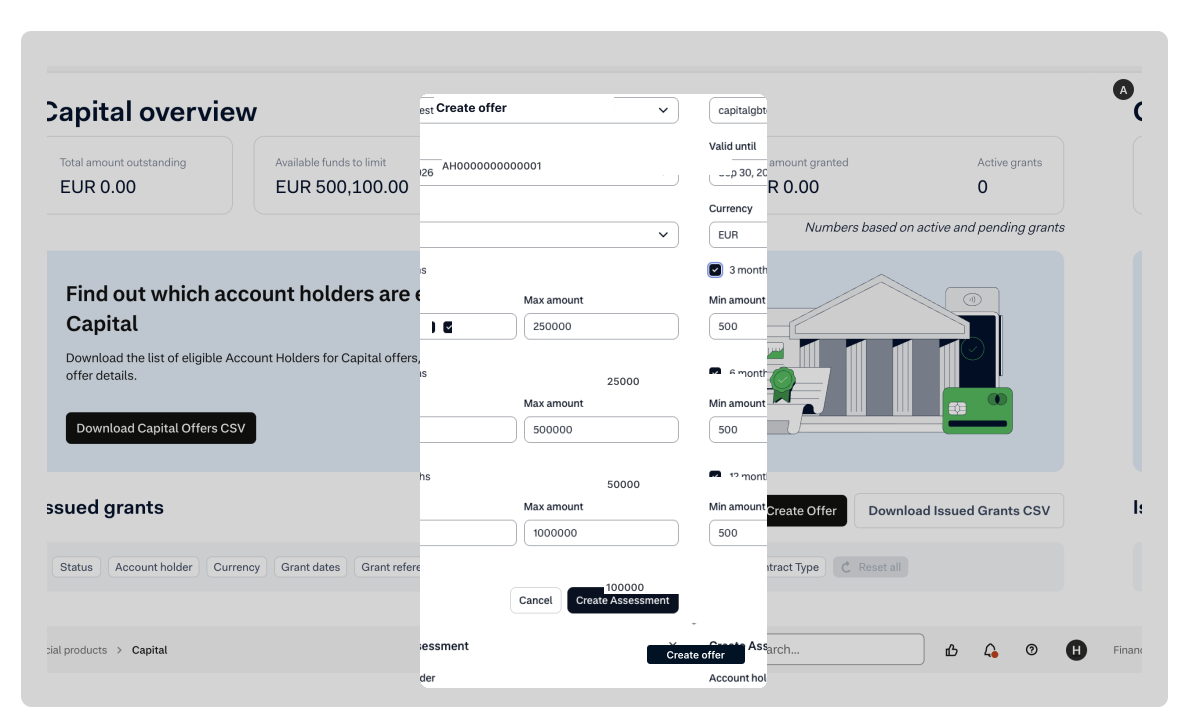
- In the form that opens, enter the account holder, expiration date, currency, repayment term, and financing amount. By default, the expiration date is seven days from today.
- Select Create offer to submit the form.
2. Get the test financing offer
The following tabs show the available options.
If you cannot find the test offer through the API, webhooks, or UI components, wait a few seconds and check again, because Adyen creates the offer asynchronously. If the offer is still missing, the account holder had an active offer when you submitted the form.
3. Test the rest of the flow
Adyen handles your test financing offer in the same way as any other financing offer, so the rest of your integration works as it does in live. Use the following pages to test the rest of the flow:
| Step | What you test |
|---|---|
| Build your user interface | If you build your own user interface, you can control how you present offers to users, such as showing them as a range of amounts or as a list of fixed amounts. You choose the amount, the repayment term, and the expiration date, so you can create an offer for each case that your interface handles. For example, you can show an offer that expires soon in a different color from an offer that expires later. An account holder can have only one active offer, so use a separate account holder for each offer that you want to compare. |
| Show the Terms of Service | Your users can read and accept the Terms of Service before they get a grant. |
| Disburse a grant | You can configure a grant for the selected offer and settle the funds in the balance account. |
| Webhook types | Your server receives and accepts the Capital and Transfer webhooks for the grant and the fund transfer. |
| Get grant details | You can get the balances and the status of the grant. |
When you go live, you set up your balance platform, account holders, and other resources from scratch, because your test setup does not carry over. Follow the go-live checklist to make sure that your integration is ready.