


Capital repayments and disbursements are booked as accounting events on your balance platform. They appear in the same webhooks and reports as your other money movements, so you can reconcile them in two ways:
- Consume webhooks
- Use your Balance Platform reports
This page explains when repayments appear in your webhooks and reports and how to reconcile the principal and fee amounts of each repayment.
Requirements
Before you begin, review the following requirements and limitations.
| Requirement | Description |
|---|---|
| Integration type | You must have an Adyen for Platforms integration that supports Capital. |
| Customer Area roles | To configure report columns, you must have one of the following roles:
|
| Webhooks | To reconcile using webhooks, subscribe to: |
| Limitations | If your payout is scheduled at or very close to the sales day closing time, Adyen cannot always book the repayment before the payout. As a result, the repayment does not always appear in the same payout report. Schedule payouts at least one hour after the sales day closes. |
How Adyen books repayments
Adyen books repayments based on the sales-day settlement schedule:
- For a user with an active grant, Adyen reserves a fixed percentage of their net captured volume for each repayment. For more information about scheduled and unscheduled repayments, see Repayment.
- Adyen aligns the repayment to the sales date of the payments it is reserved from and books it approximately one hour after the sales day closes, before it books the payout. The repayment appears on the same Balance Platform Accounting Report and Balance Platform Payout Report as the related sales and payout.
- Adyen processes repayments daily based on when funds settle, regardless of the payout schedule. Whether you use daily, weekly, or manual (on-demand) payouts, each repayment aligns to the correct sales date.
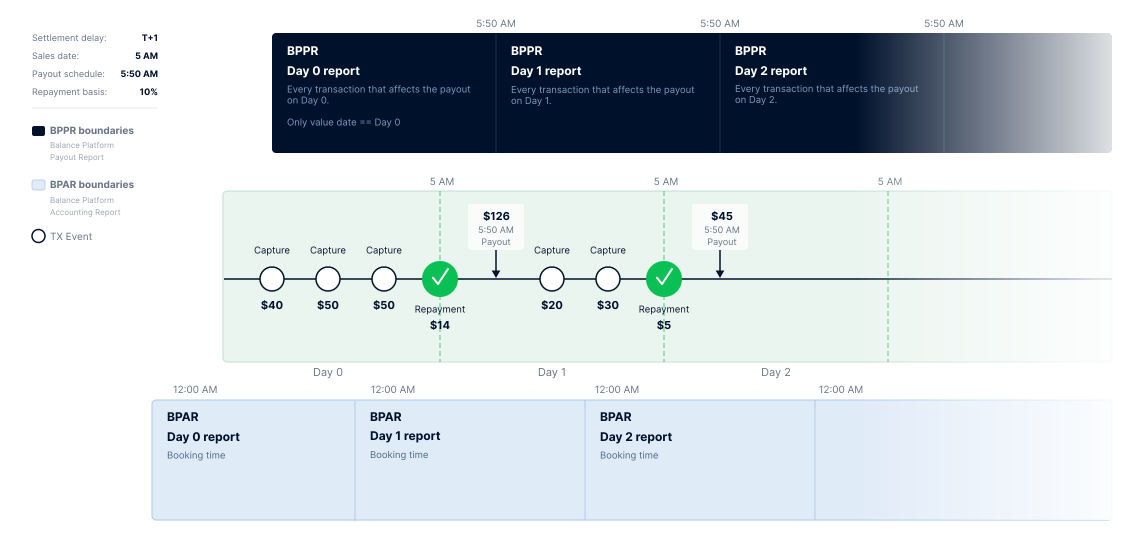
Adjustments to the reserved amount
Before Adyen books a repayment, it holds the reserved amount on the balance account. This reserved amount can change before the repayment is booked:
- Over-reservation: When the repayment process runs, Adyen checks whether the reserved amount exceeds what is owed. Adyen releases any excess back to the available balance when it books the repayment. The freed-up funds are then included in the same payout for that day.
- Chargebacks: If a chargeback is settled before the sales day closes, Adyen partially releases the reserved balance and adjusts the repayment amount accordingly. If the chargeback arrives after the repayment is booked, Adyen makes no adjustment.
- Refunds: Refunds follow the same schedule as sales and adjust the reserved amount, similar to chargebacks. Because refunds are less time-critical, Adyen does not always apply the adjustment before it books the repayment for that day.
Settlement delay changes
When a user changes their settlement delay (for example, from T+1 to T+2) during a sales day, Adyen splits that day's repayment into two bookings. Sales before the change follow the original settlement schedule, and sales after the change follow the new one. Two separate repayment entries can appear for the transition day, but both align to the sales dates from which the funds were withheld.
Scheduled and unscheduled repayments
A scheduled repayment creates a single outgoing transfer of type repayment. An unscheduled repayment creates two transfers on the user's balance account. First, Adyen creates an incoming transfer from its internal Capital fund collection account of type capitalFundsCollection. Then, Adyen creates an outgoing transfer of type repayment. Both transfers post to the balance account. Expect two lines when you reconcile an unscheduled repayment.
Each disbursement has dedicated bank account details for unscheduled repayments. When a user receives a new disbursement, retrieve and share the bank account details for that disbursement. Do not reuse the bank account details from an earlier disbursement.
Reconcile using webhooks
Capital money movements appear in the Transfer webhooks and Transaction webhooks that you consume for your balance platform.
To reconcile repayments using webhooks:
-
In the transfer webhook, identify a repayment when all of the following fields apply:
Parameter Description Value category The category of the transfer. grants type The type of the transfer. - Repayment: repayment
- Related non-repayment transfers: grant disbursement grant and unscheduled repayment collection capitalFundsCollection
direction The direction of the transfer from the balance account's perspective. - Repayment: outgoing
- Related non-repayment transfers: incoming
reference The reference of the transfer. For an outgoing repayment, the ID of the related grant. For example, GR00000000000000000000001. A capitalFundsCollection transfer has its own internal reference. amount The amount of an outgoing repayment transfer, in minor units. For example, 7720 for USD 77.20. status The status of the transfer. A repayment progresses through received, authorized, and booked. -
To confirm that a repayment is booked in the balance account, use the balancePlatform.transaction.created webhook. Match the transfer.id to the transfer created for the repayment. For an outgoing repayment, match the transfer.reference to the related grant ID. A capitalFundsCollection transfer has its own internal reference.
To trigger reconciliation only for completed repayments, run it when you receive the balancePlatform.transaction.created webhook, rather than on a timer.
For the full webhook structures and example payloads, see Webhook structures and types for Capital and Fund transfer-related events.
Reconcile using reports
Balance Platform Accounting Report
The Balance Platform Accounting Report contains all repayment bookings by Booking Date. To match a booking back to a webhook or another report, use the Transfer Id, Transaction Id, and Reference columns.
To reconcile repayments using the Balance Platform Accounting Report:
-
Filter on the following columns to identify grant-related entries:
Column Description Value Category The category of the transaction. grants Type The type of the transaction. - Grant disbursement: grant
- Regular repayment: repayment
- Unscheduled repayment: capitalFundsCollection and repayment
-
In the Value Date column, verify that the repayments align to the correct sales date.
Split a repayment into principal and fee
Each loan has a principal (the funded amount) and a fee (the fixed cost). Adyen splits every repayment proportionally into a principal amount and a fee amount.
To view this split, you need to add the Capital columns to your Balance Platform Accounting Report in your Customer Area:
-
Go to Settings, scroll down to the Product settings > Balances section and select Report columns.
-
On the Configure report columns for page, find Balance Platform Accounting Report in the report list and select Configure.
-
Add the following columns to your Balance Platform Accounting Report and select Save configuration:
Column Description Capital Principal Amount The amount of principal debited or credited on the balance account for financing received through Capital. Capital Fee Amount The amount of fees debited or credited on the balance account for financing received through Capital. -
Check for the latest reports under Reports > Reports overview and reconcile the principal and fee amounts of each repayment against your loan records.
For the full list of Capital columns, see the Balance Platform Accounting Report structure.
Balance Platform Payout Report
The Balance Platform Payout Report contains repayments grouped with the related sales and payout for the same day. Repayments appear as standard transfer line items, not as dedicated columns. Each repayment is a line with Category set to grants and Type set to repayment. To match it, use the Transfer Id and Reference columns.
To reconcile repayments using the payout report:
- Open the payout report for the relevant payout date.
- Confirm the net payout amount after Adyen deducts the repayment line items.
Example
In this example, a user has the following configuration:
- Sales day closing time: 6:00:00
- Payout time: 13:00:00
- Sales day payout: T+1
- Repayment rate: 6%
- Net captured sales volume for the sales day: USD 1,286.76
Repayment calculation
USD 1,286.76 × 6% = USD 77.20
The sale is booked on 2026-02-25, while the repayment and payout are booked on 2026-02-26. Even so, all three share the same payout report date (2026-02-26), so they appear together on the Balance Platform Payout Report for that day. The following table shows how these records line up across the reports:
| Accounting Report Date | Payout Report Date | Category | Type | Booking Date | Value Date | Currency | Amount |
|---|---|---|---|---|---|---|---|
| 2026-02-25 | 2026-02-26 | platformPayment | capture | 2026-02-25 22:12:42 | 2026-02-26 6:00:00 | USD | 1,286.76 |
| 2026-02-26 | 2026-02-26 | grants | repayment | 2026-02-26 6:30:58 | 2026-02-26 6:30:18 | USD | -77.20 |
| 2026-02-26 | 2026-02-26 | bank | bankTransfer | 2026-02-26 13:00:57 | 2026-02-26 13:00:12 | USD | -1,209.56 |
Confirm the outstanding balance
The reports and webhooks show individual repayment bookings. To confirm the remaining balance or that a grant is fully repaid, check the grant balances instead of adding up the report lines.
To check the outstanding balance:
- Make a GET /grants/{grantId} request, or consume the Capital grant webhook.
- In the response, check the balances object (
principal,fee, andtotal) and the status. A fully repaid grant has atotalof 0 and the status Repaid.
For the full flow, see Get grant details.
Repayment identifiers in webhooks and reports
A repayment carries the same identifiers in webhooks and in reports, so you can match a record from one source to another.
| Identifier | In webhooks | In reports |
|---|---|---|
| Grant ID | The transfer reference (for example, GR00000000000000000000001) | The Reference column |
| Transfer ID | The transfer id | The Transfer Id column |
| Transaction ID | The id | The Transaction Id column |
Amounts appear in minor units in webhooks (for example, 7720 for USD 77.20) and in the payment currency in reports (for example, 77.20). An outgoing repayment shows as a negative amount in the reports.