


After you set up a CPOS integration, you can use Tap to Pay so your store employees can accept contactless payments anywhere in your store, without a dedicated payment terminal.
The Tap to Pay integration differs depending on the operating system of your mobile device:
| App | Device | Integration |
|---|---|---|
| Cegid Retail Mobile POS | iPhone | Tap to Pay on iPhone (iOS Mobile SDK) |
| Cegid Retail Live Store | Android | Adyen Payments app |
Contact your Cegid representative if you need assistance with the setup.
Tap to Pay with Mobile POS on iPhone
With a Cegid Retail Y2 Mobile POS integration, you can use our Tap to Pay on iPhone solution to initiate and accept payments on an iPhone.
This enables your store employees to assist shoppers with their payments anywhere in your store, without having your shoppers go to the cash register to complete their purchase.
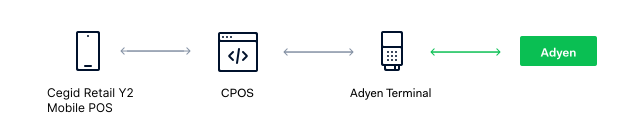
To see a demo of the Tap to Pay on iPhone solution, contact your Adyen representative.
Requirements
The following requirements apply to use Tap to Pay on iPhone:
- Cegid Retail Y2 InStoreHub installed on a Windows device, with the CPOS plugin installed.
- Cegid Retail Y2 Mobile POS version 5.1.766 or later.
- Cegid Retail Y2 version 18 or later.
- An iPhone that meets the:
If you do not have InStoreHub, you cannot print payment receipts. Check fiscal requirements per country/region and reach out to your Cegid contact to learn whether it is possible to launch Tap to Pay on iPhone without InStoreHub.
How it works
- In the Cegid Retail Y2 Mobile POS app on the iPhone, your store employee selects the option to pay with Tap to Pay on iPhone.
- The iPhone shows a payment screen.
- The shopper taps the store employee's iPhone with their payment card or with their own phone (or other device) that has an NFC digital wallet like Apple Pay.
- Your store employee receives the payment result in the Cegid Retail Mobile POS app.
Set up Tap to Pay on iPhone
- Contact your Cegid representative to learn more about activating the extension for your Cegid Retail account.
Activating the extension comes with additional costs. - Contact your Adyen representative to enable Tap to Pay on iPhone for your account.
- Use the Cegid documentation to set up Tap to Pay on iPhone.
To test your Tap to Pay on iPhone integration, you must use a mobile device in Developer Mode.
If you run into an issue, see Tap to Pay troubleshooting.
Tap to Pay with Live Store on Android
With a Cegid Retail Live Store integration, you can use the Adyen Payments app to accept Tap to Pay contactless payments on an Android device. This enables your store employees to assist shoppers with their payments anywhere in your store, using a commercial off-the-shelf Android device instead of a dedicated payment terminal.
This integration uses the Adyen Payments app, a standalone app that you download from the Google Play Store. The Payments app handles the payment flow and communicates with the Adyen platform.

Supported features
The following features are supported with this integration:
- Customer present payments
- Unreferenced refunds
Requirements
The following requirements apply to Tap to Pay using the Adyen Payments app with Live Store:
- Cegid Retail Live Store. Contact your Cegid representative for version requirements.
- An Android device that meets the:
- The Adyen Payments app downloaded from the Google Play Store.
How it works
- In the Cegid Retail Live Store app on the Android device, your store employee selects the option to pay with Tap to Pay.
- The Adyen Payments app opens and shows a payment screen.
- The shopper taps the store employee's Android device with their payment card or with their own phone (or other device) that has an NFC digital wallet like Google Pay.
- The Adyen Payments app processes the payment and returns the result to Live Store.
- Your store employee receives the payment result in the Cegid Retail Live Store app.
Set up Tap to Pay using the Adyen Payments app
To set up Tap to Pay using the Adyen Payments app for Live Store:
- Contact your Cegid representative to learn more about activating Tap to Pay using the Adyen Payments app for your Cegid Retail account.
- Download the Adyen Payments app on your Android device:
- For testing: Adyen Payments app – Test
- For production: Adyen Payments app – Live
- In your Customer Area:
- Create an API credential for the Adyen Payments app.
- Generate an API key. Save it — you need it to configure Live Store.
- Generate a client key. Save it — you need it to configure Live Store.
- Add the Adyen Payments App role to the API credential.
- Set up encryption by configuring a key identifier, passphrase, and key version. Save these values — you need them to configure Live Store.
- Save your Merchant Account ID (not the Company Account) — you need it to configure Live Store.
- If using store-level routing, save your Store ID (not the store reference) — you need it to configure Live Store. Go to Stores > select your store > About this store.
- Contact our Support Team to enable the following for your account:
- Tap to Pay on Android
- Short payment response for browser-based POS apps
- Optionally, unreferenced refunds
- Use the Cegid documentation to configure Live Store for Tap to Pay using the Adyen Payments app. You need the values you saved in step 3.
Android device security settings
The Adyen Payments app performs mandatory PCI security checks before showing the PIN entry screen. Configure the following settings on your Android device to ensure security compliance:
| Setting | Requirement |
|---|---|
| Developer Options | Must be OFF. If Developer Options were previously active, turn them back ON, enable Verify apps installed over ADB, and then turn them OFF again. |
| Device passcode | A device passcode or PIN must be enabled. |
| Accessibility Services | All accessibility services must be OFF. Go to Settings > Accessibility > Installed Apps and turn off all services. |
| Screen recording | All screen recording and screen sharing features must be disabled during transactions. This includes the built-in Android screen recorder, screen casting, and third-party screen capture apps. |
| Camera | The device camera must not be in use during a payment transaction. Close any apps that use the camera, such as barcode scanners or video calling apps. |
| Screen overlay apps | All apps that draw content on top of other apps must be disabled. This includes floating chat bubbles, floating widgets, and any app with Draw over other apps enabled. |
If any of these security checks fail, the Adyen Payments app cancels the transaction and does not show the PIN entry screen.
If you run into an issue, see Tap to Pay troubleshooting.