


Passkey authentication is a form of Strong Customer Authentication (SCA) that saves a passkey on the cardholder's device. The first time the cardholder authenticates a card transaction by completing an SCA challenge, they register their biometrics or a PIN code as a passkey. For all subsequent transactions on the same device, they authenticate using the registered biometrics or PIN instead of completing a new SCA challenge.
Requirements
| Requirement | Description |
|---|---|
| Integration type | Adyen Issuing |
| Limitations |
|
| Setup steps | Before you begin, you must enroll the cardholder's cards in 3d secure using One-time password authentication. |
Register a passkey
The cardholder can register their passkey the first time they make an online payment, and get redirected to a 3D Secure authentication page.
If no passkey is registered, the cardholder continues to use the one-time password authentication method for all transactions.
To register a passkey, the cardholder must:
-
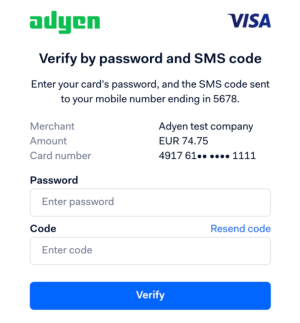
Complete the SCA challenge successfully, using the one-time password authentication method.
-
When prompted to register a passkey, select Create passkey. You can register a maximum of five passkeys to a single card. To register more than five passkeys, reach out to our Support Team.
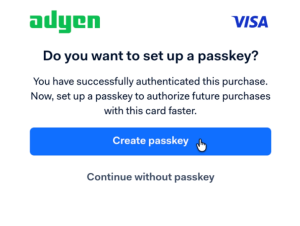
If the cardholder selects Continue without passkey, no passkey is registered, and the cardholder continues to use the one-time password authentication method for future transactions.
-
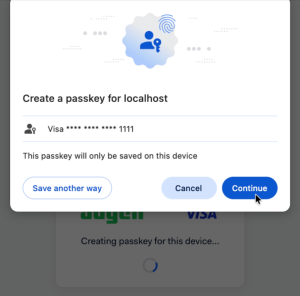
Set up their passkey with their preferred authentication method:
- If their device supports biometrics, they can register their biometrics.
- If their device does not support biometrics, they must set up a PIN code.
-
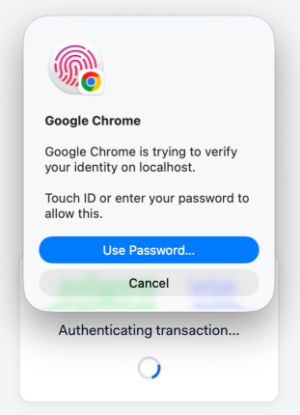
Authenticate using the biometrics or PIN code they just registered.
-
If successful, the cardholder receives a confirmation that the passkey was created successfully. Select Continue.
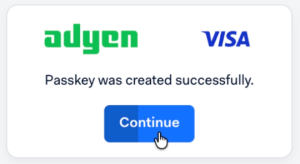
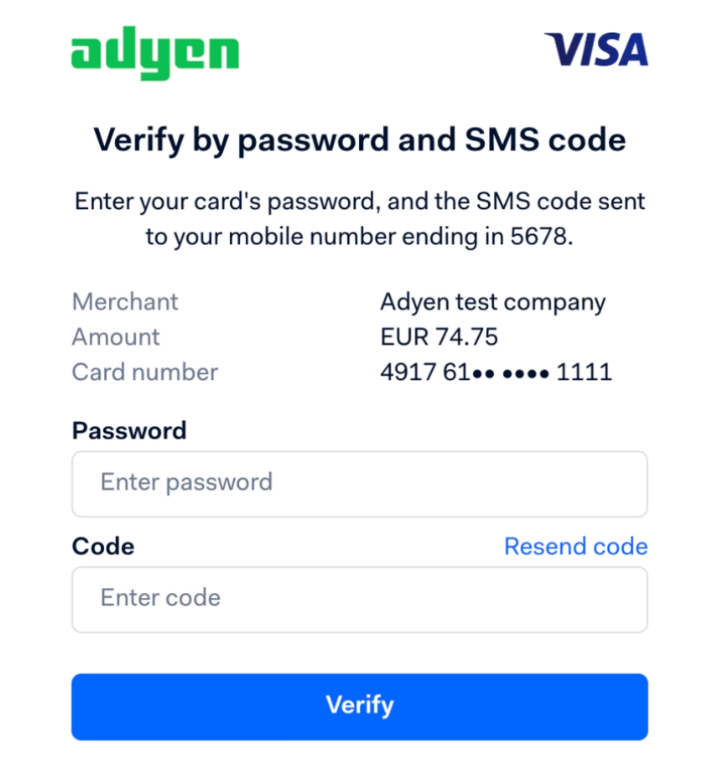
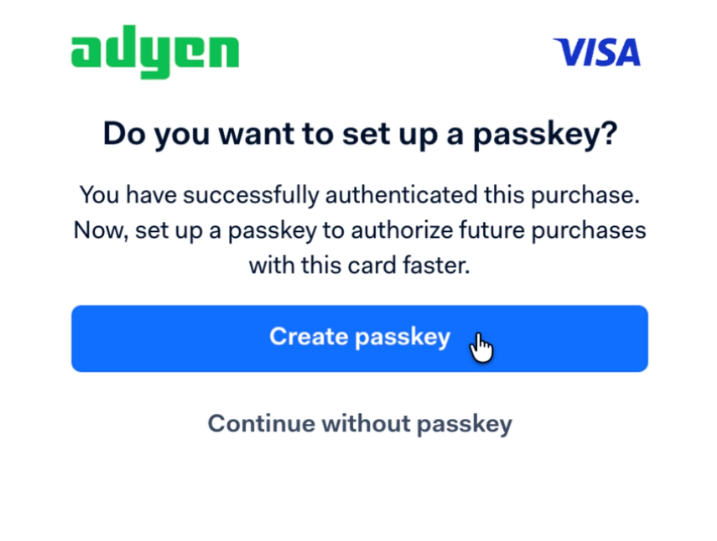
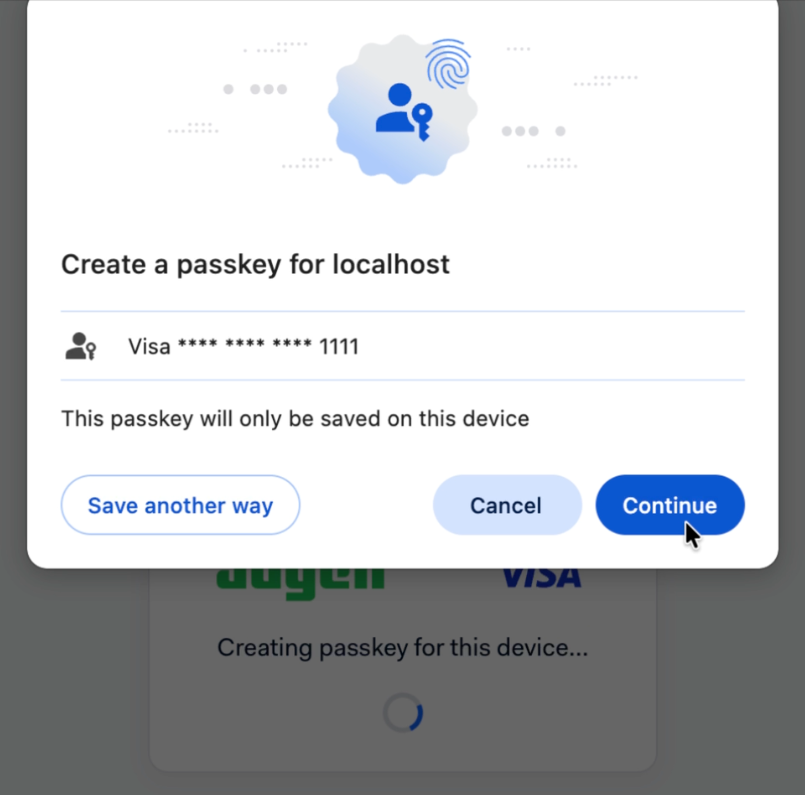
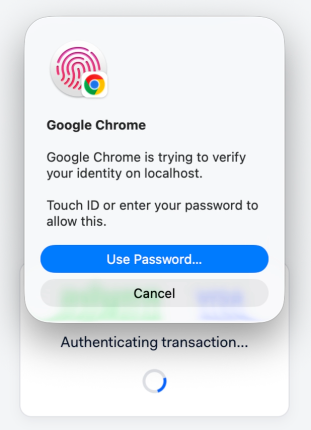
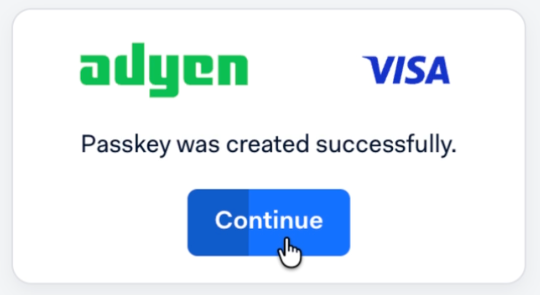
The passkey is saved to the cardholder's password manager. For all future transactions on the same device, the cardholder can authenticate using the biometrics or PIN they registered.
Authenticate using a passkey
After a cardholder has registered a passkey, they can use it to authenticate all subsequent transactions on the same device. To do this, they must do the following:
-
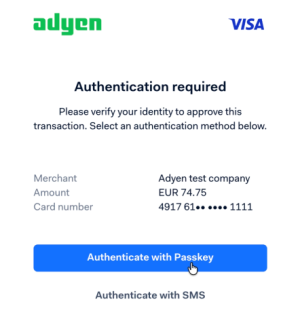
When prompted to authenticate their transaction, select Authenticate with Passkey.
-
Provide their registered biometrics or PIN code.
-
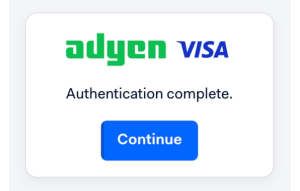
If the authentication is successful, select Continue. This completes the SCA challenge and the payment becomes ready for authorization.
 .
.
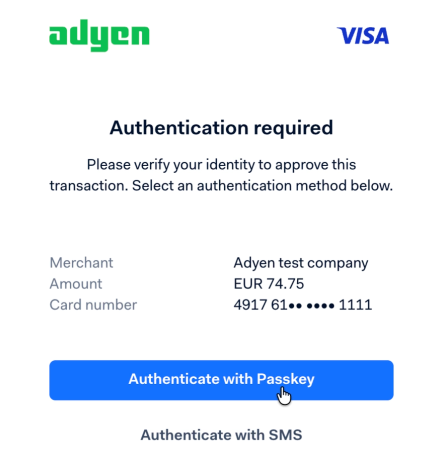
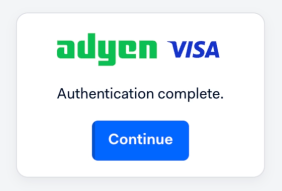
If the authentication fails, the cardholder can either retry the authentication, or authenticate using the one-time password authentication method.
Delete a passkey
You may want to delete a passkey if:
- The device where the passkey is registered is lost, stolen, or no longer in use.
- You want to register a new passkey but have already reached the maximum of five passkeys for a single card.
- You no longer want to use passkey authentication on a specific device.
To delete a passkey, reach out to our Support Team.
After a passkey is deleted, the cardholder can no longer use it to authenticate transactions. For future transactions on that device, the cardholder will need to authenticate using the one-time password authentication method.