


When payments are processed through Adyen, funds move from your merchant account (on the payment processing side) to the balance platform using internal transfers. To reconcile these fund movements, you use webhooks and reports from both sides. By comparing, matching, and mapping values from these webhooks and reports, you can reconcile your balances.
Webhooks
To keep you updated about fund movements in your merchant account and balance platform, Adyen sends the following types of webhooks:
-
Standard webhooks (payment processing side):
You can subscribe to Standard webhooks in your Customer Area to receive notifications about fund movements in your merchant account. For each transaction that is processed to your merchant account, you receive an Authorization and Capture webhook in real time. The Capture webhook contains asettlementReferenceandexpectedValueDatethat you can use for reconciliation. Both of these values contain a date that matches the date in the Value Date column of the Balance Platform Statement Report.Here is an example of the webhook you receive when a payment is captured on the payment processing side:
-
Transfer webhooks (balance platform side):
To stay updated about the funds moving into the balance accounts in your balance platform, you can subscribe to Transfer webhooks in your Customer Area. Each settlement batch is treated as a single internal transfer. This means that for each batch that gets settled to your balance account, you receive the following webhooks:- balancePlatform.transfer.created: informs your server that an incoming transfer is initiated to your balance account.
- balancePlatform.transfer.updated: informs your server of transfer status changes.
Here is an example of the webhook you receive when an internal transfer is initiated to settle funds to the balance platform:
Reports
You can use the following reports from the payment processing side and the balance platform side to reconcile your transactions:
| Report name | Description | Generation details | How to generate |
|---|---|---|---|
| Settlement Details Report (SDR) | A report generated on the payment processing side. It contains the details of every transaction in a settlement batch. | This report is generated on the basis of a transaction's booking date in the timezone of your merchant account. | To download this report, go to Reports page in your Customer Area. You can download this report for a single payable batch. |
| Aggregate Settlement Details Report (ASDR) | A report generated on the payment processing side. It contains the details of all the settlement batches in a given period. | This report is generated on the basis of a transaction's booking date in the timezone of your merchant account. | To download this report, go to Reports page in your Customer Area. You can specify the time period for which you want to generate the report. |
| Balance Platform Statement Report (BPSR) | A daily report generated on the balance platform side that shows the opening and closing balance for the day. It contains details of the fund movements to the balance platform for that day. Each balance adjustment that books funds to the balance platform is recorded as a single entry in this report. | This report is generated on the basis of a transfer's value date in CE(S)T. | To download this report, go to Reports page in your Customer Area. You can specify the date for which you want to generate the report. |
| Balance Platform Interactive Accounting Report (BPIAR) | A report generated on the balance platform side. It contains details of the fund movements to the balance platform from your payable batches. | This report is generated on the basis of a transfer's booking date in CE(S)T. | To download this report, go to Reports page in your Customer Area. You can specify the time period for which you want to generate the report. |
Balance platform reports are always generated in the CET timezone. If your merchant account is not in the CET timezone, configure an additional column called Booking Date (AMS) on the Settlement Details Report. Use the Booking Date (AMS) value to compare with the balance platforms reports instead of the Creation Date.
Daily reconciliation
For daily reconciliation, use the Settlement Details Report (SDR) and the Balance Platform Statement Report (BPSR).
The funds that are settled to your payable batches are aggregated and moved to the balance platform in internal transfers. Your merchant account has 1-24 payable batches per day. The funds from each batch are settled to the balance platform in a single internal transfer. Depending on the number of batches, you have between 1 and 24 internal transfers per day. For example, you can have 5 payable batch per day, which means you will also have 5 internal transfers each day.
Reconciliation process
To reconcile fund movements to the balance platform for a specific day:
- (Conditional) If your merchant account is not in the CET timezone, configure an additional column called Booking Date (AMS) on the Settlement Details Report. Use the values in this column instead of the values in the standard Booking Date column.
- Generate the Balance Platform Statement Report (BPSR) for the sales day you want to reconcile. This report contains between 1 and 24 InternalTransfer entries. In the Reference column of these entries, note the settlementBatch number.
The BPSR is always generated in the CET timezone. If your merchant account calculates sales days based on a different timezone, the BPSR you generate for a sales day can contain more than one CET date. In such cases, the BPSR includes all transactions that occurred on the sales day in your timezone, but may cut across 2 CET days.
- Generate the Settlement Details Reports (SDR) for each settlementBatch number specified in the BPSR. Each report contains one MerchantPayout entry.
If you have multiple batches per day, you must generate the SDR for each batch. Alternatively, you can generate the SDR by date. This gives you a single report that contains the details of all batches that occurred on that date. In this case, each report contains more than one MerchantPayout entry. If your merchant account is not in the CET timezone, make sure that you generate the SDR for the same dates corresponding to the InternalTransfer entries in the BPSR. For example, if the BPSR contains InternalTransfer entries from 16th and 17th July, you must generate the SDR for 16th and 17th July.
- Match the MerchantPayout entries in each Settlement Details Report to the corresponding InternalTransfer entry in the Balance Platform Statement Report. In addition to the amounts and description, the Value Date of the BPSR entry must match the Creation Date or Booking Date (AMS) of the SDR entry.
Example
In the following example, we show you how reconcile balances for the 17th of July, 2026.
- Download an example Balance Platform Statement Report (BPSR) for the 17th of July, 2026.
- In the Description column of the BPSR, note the settlementBatch number. Because you have multiple batches on that day, it is easier to generate the SDR per date instead of per batch.
- In the Value Date column of the BPSR, note the date in CEST. These dates and times correspond to one sales day in your timezone. In this case, you can find the following dates on the BPSR: 16th July 2026 and 17th July 2026. You must generate the Settlement Details Reports (SDR) both of these dates.
- Download an example Settlement Details Report (SDR) for the 17th of July, 2026.
- Match the MerchantPayout entry for batch 144 with the InternalTransfer entry for batch 144 in the BPSR. The amounts and description match. The Value Date of the BPSR entry matches the Booking Date (AMS) of the SDR entry.
Monthly reconciliation
To reconcile settlements to the balance platform on a monthly basis, you can use Adyen reports or the Liable account summary dashboard.
Adyen reports
For monthly reconciliation, use the Aggregate Settlement Details Report (ASDR) and the Balance Platform Interactive Accounting Report (BPIAR).
To reconcile fund movements to the balance platform for a specific month:
- (Conditional) If your merchant account is not in the CET timezone, configure an additional column called Booking Date (AMS) on the Aggregate Settlement Details Report. Use the values in this column instead of the values in the Creation Date column.
- Generate the Balance Platform Interactive Accounting Report (BPIAR) from the first to the last day of the month. For example, to reconcile June, generate the BPIAR from June 1 to June 30. Take the sum of all booked InternalTransfer entries where the Value Date falls in the target month. This is the total settled amount for the month.
If you have multiple merchant accounts settling to the same balance account, you can find the source merchant account for the transfer in the Description column.
- For each merchant account you want to reconcile, generate the Aggregate Settlement Details Reports (ASDR) for the target month. This report contains multiple MerchantPayout entries.
- Compare the BPIAR with the ASDR generated for the month. The total settled amount for the month based on the InternalTransfer entries in the BPIAR, must match the total of all the MerchantPayout entries in the ASDR for all relevant merchant accounts.
Example
In the following example, we show you how reconcile balances for June 2026.
- Download an example Balance Platform Interactive Accounting Report (BPIAR) from June 1 to June 30, 2026.
- To find the total settled amount for June, we take the sum of all booked InternalTransfer entries where the Value Date falls in June 2026.
- Download an example Aggregate Settlement Details Report for June 2026. Take the sum of all entries in the Net Debit (NC) column, where the Journal Type is MerchantPayout.
- The sum of the InternalTransfer entries in the BPIAR matches the sum of the MerchantPayout entries in the ASDR.
Liable account summary dashboard
Use this reconciliation method only if you have one account holder in your balance platform. If you have multiple account holders tied to your balance platform, reconcile using Adyen reports instead.
The Liable account summary dashboard is a financial reconciliation dashboard available in your Customer Area.
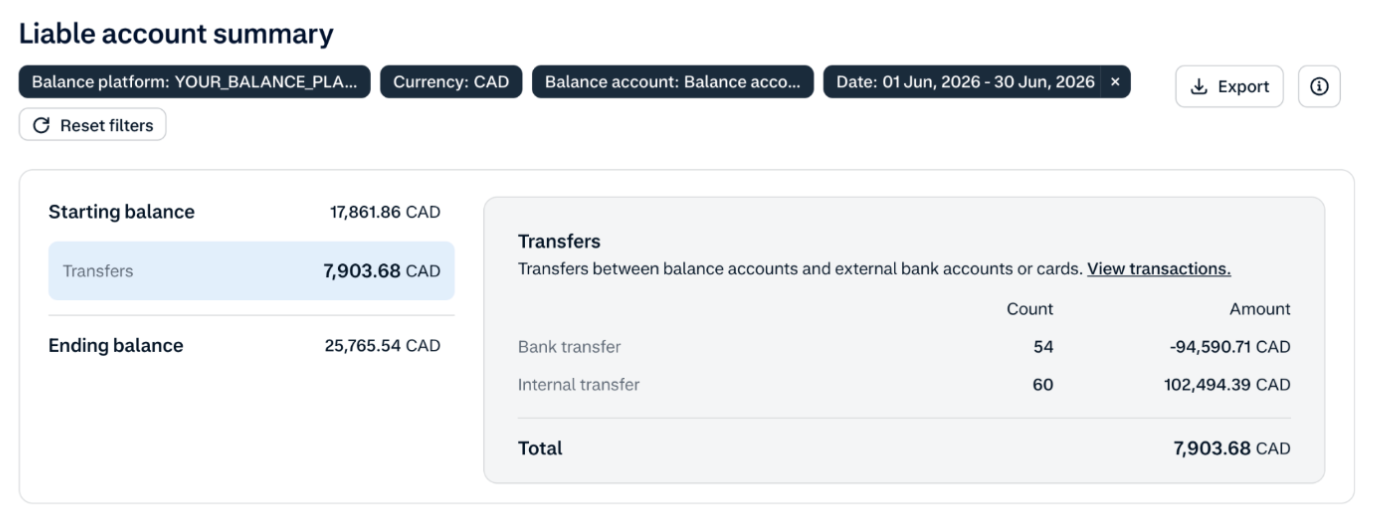
This dashboard gives you a clear, aggregated view of balance changes and the balances held by your account holder in their balance account(s). This prevents the need to manually reconcile using multiple reports and makes it easier to identify any discrepancies.
To reconcile your balances using the liable account summary dashboard:
- Go to the Liable account summary dashboard.
- For each merchant account you want to reconcile, generate the Aggregate Settlement Details Reports (ASDR) for the target month. This report contains multiple MerchantPayout entries.
- Compare the Liable account summary dashboard with the ASDR generated for the month. Ensure the following:
- The number of MerchantPayout entries in the SDR must match the Count of Internal transfers in the dashboard.
- The total sum of MerchantPayout entries in the SDR must match the Amount for Internal transfers in the dashboard.
Final balance reconciliation
You can use the Balance Platform Statement Report (BPSR) as a final ledger to reconcile your balances. This report contains the following entries:
- Starting balance: The starting balance at the time of report generation.
- Positive balance adjustments: The net settled amount from all the settlement batches. This takes into account refunds, chargebacks, and the fees incurred on these payments.
- Negative balance adjustments: Amounts that were deducted from the balance account, such as for payouts or internal transfers.
- Other balance movements: All money movements that aren’t balance adjustments such as payouts and all other outgoing transfers.
- Ending balance: The balance after adding and deducting the balance adjustments.
BPSR ledger
- Starting Balance
- (+) Incoming Settlement: (The total from all the SDR batches).
- (-) Outgoing Movements: (Payouts, internal transfers, fees).
- (=) Ending Balance