


You can allow your cardholders to change the PIN of their Adyen-issued card within your application. Secured sessions use end-to-end encryption between your client and Adyen, without exposing sensitive card data to your server.
This page explains how to use secured sessions and Adyen's SDKs for iOS and Android to change PINs through your user interface.
Requirements
Before you begin, take into account the requirements, preparations, and limitations specified in the following tabs.
Secured sessions with Adyen
With secured sessions, your server creates a session with specific permissions and scope. Your client uses this session to communicate directly with Adyen through the SDK.
Adyen's SDKs for iOS and Android allow you to send a new PIN to Adyen, replacing the previous one. Additionally, they automatically handle all cryptographic operations, such as exchanging keys, encrypting, and decrypting the PIN.
Secured sessions with Adyen's SDKs offer the following benefits:
- Your server never handles sensitive PIN data.
- Sessions are scoped to a specific card and operation.
- Sessions are single-use, which prevents replay attacks.
- End-to-end encryption between the SDK and Adyen protects data in transit.
How it works
The following diagram illustrates the PIN change flow using sessions.
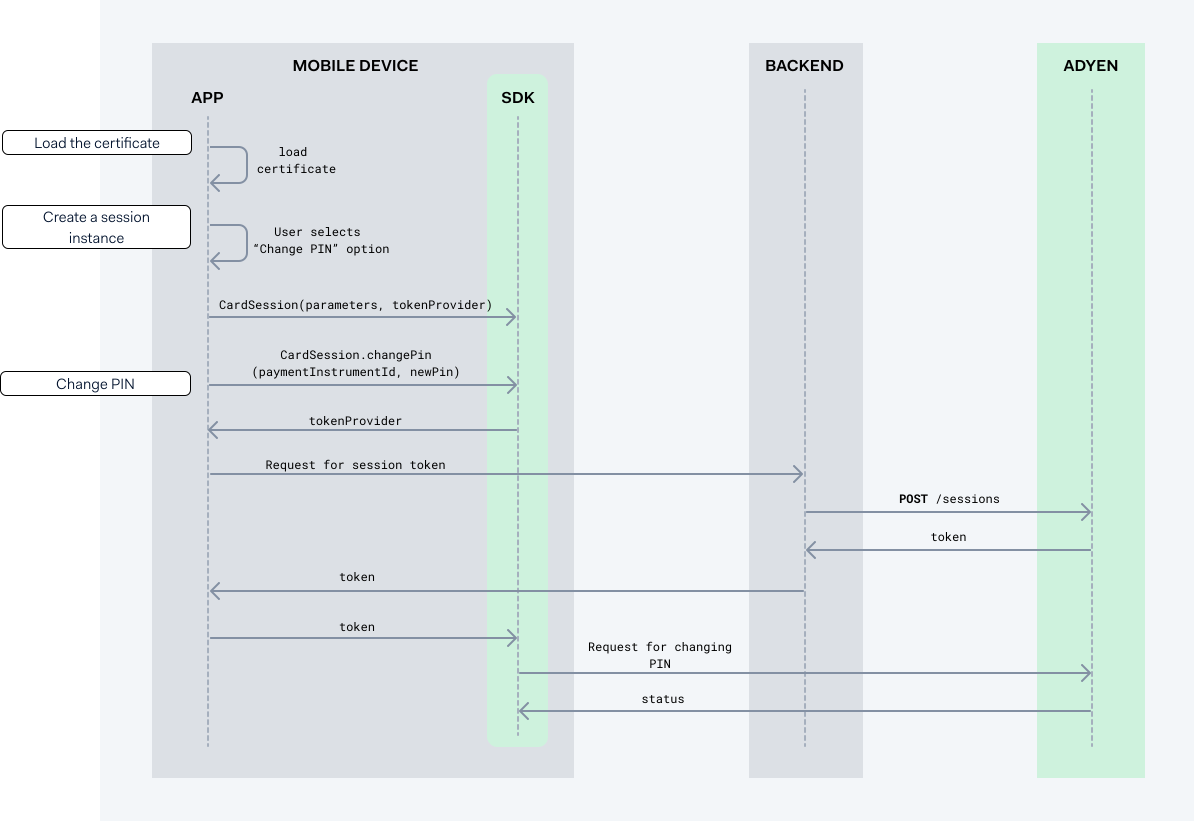
As shown in the diagram, the steps to change the PIN are:
- Load the application certificate when your application starts.
- Create a session instance.
- Change the PIN.
1. Load the application certificate
Adyen provides you with an application certificate that you need to initialize Adyen's SDKs. The SDKs use this certificate to establish a secure session with Adyen.
When your application starts:
-
Load the application certificate into your application.
The following tabs show examples of how to load the certificate depending on which SDK you are using.
2. Create a session instance
When a cardholder using your application selects the option to change the PIN, you must initialize the SDK. During initialization, you configure all objects and logic that handle your secure session with Adyen.
The following tabs show examples of how to initialize Adyen's SDKs for iOS and Android.
3. Change the PIN
After you initialize the SDK, you can create a secured session. Start the flow for a secured session by calling the CardSession.changePin SDK method. This method instructs the backend to make a request to our Session authentication API. Then, the SDK method retrieves the session data from the backend and returns it to your application.
To create a secured session:
-
From your client application, call the session instance that you created. Pass the following parameters:
paymentInstrumentId: The payment instrument ID of the card.newPin: The new PIN for the card.
This method instructs the backend to make a request for a session. The following tabs show examples for iOS and Android. -
From your backend, make a POST /sessions request with the following parameters:
Parameter Required Description product 
Set to platform. policy.resources.type Set to paymentInstrument. policy.resources.paymentInstrumentId The unique identifier of the payment instrument that the session applies to. policy.roles An array of roles that define the allowed operations. Include the PaymentInstrument: Pin Change role. -
Verify that the response contains a session token.
-
Pass the token from your backend to the SDK. Use the token provider that you defined when you initialized the SDK.
If the request is successful, the SDK uses the token to establish a secure session with Adyen. The SDK uses the secure session to send the encrypted new PIN to Adyen. You do not need to make additional calls.
The created session remains active for 5 minutes.
Troubleshooting
The following table describes errors the Adyen's SDKs can return and how to solve them.
| Error | Description | Solution |
|---|---|---|
| Session expired | The session token has expired. | Create a new session from your server. |
| Unauthorized | The session does not have the required role for the requested operation. |
|
| Forbidden | The payment instrument ID does not match the ID provided in the POST /sessions request. |
Verify that the payment instrument ID matches the ID provided in the POST /sessions request. |