


Read more
 Learn more about Adyen Giving on adyen.com, see the most-asked questions on Adyen Help , or use Adyen Giving on your payment terminals.
With Adyen Giving, you can give your shoppers the option to donate to a nonprofit as part of your payment flow. If the shopper chooses to make a donation, the donation amount is charged to the same payment method that was used for the original transaction.
Donations are settled directly to the nonprofit's bank account. Adyen covers all fees and the donation amount is transferred to the nonprofit in full.
Requirements
Before you begin, take into account the following requirements, limitations, and preparations.
| Requirement | Description |
|---|---|
| Integration type | An online payments integration with Checkout API v67 or later:
To ask for donations pre-checkout, you must have an API only integration. |
| Customer Area roles | Make sure that you have the following roles:
|
| Limitations | Make sure that you are using payment methods and currencies that are supported by Giving. See: |
| Setup steps | Before you begin, make sure that the nonprofit you choose has been onboarded to Adyen, or pick one of our pre-approved nonprofits that have already been onboarded. |
How it works
To accept donations through your online checkout:
-
Set up your donation campaign in your Customer Area, under Giving > Campaigns.
You need to select:- The merchant accounts that you want to make the campaign available to.
- The nonprofit organization.
-
The donation type.
-
Make sure you have a way to show the nonprofit's terms and conditions.
-
Start the donation campaign from the Campaigns overview in your Customer Area.
This overview shows all your donations campaigns and lets you start, edit, and end donation campaigns. -
When the shopper proceeds to check out, and the shopper's region, currency, and payment method support donations:
- Before or after the payment is complete, you ask the shopper if they want to donate.
- If the shopper chooses to donate, you make an API request for the donation.
- We route the donation to the nonprofit and settle the donation amount to their bank account.
Your shopper sees two separate charges on their bank statement: one for the payment and one for the donation.
-
Receive Giving webhook messages to inform shoppers of the outcome of donations.
Nonprofit organizations
For a list of pre-approved nonprofit organizations to choose from, you can consult the Nonprofit library in your Customer Area, under Giving > Nonprofit library. The list shows the United Nations Sustainable Development Goals (UN SDG), regions, and languages that the nonprofits support.
Nonprofits are only included in the list if they are compatible with the legal entity country and industry of the participating merchant accounts.
Nonprofits that are not yet pre-approved must go through an onboarding process. You can contact us to propose a new nonprofit, or for some regions you can do that from your Customer Area:
- In your Customer Area, go to Giving > Campaigns.
- Select Request nonprofit and follow the prompts to provide the details of the new nonprofit.
The step Select nonprofit country shows the regions where you can propose a new nonprofit in this way.
Donation campaigns
A donation campaign defines how and when shoppers can donate during a transaction. You set up and manage donation campaigns in the Customer Area, under Giving > Campaigns.
Set up a campaign
The Campaigns user interface in the Customer Area guides you through setting up a donation campaign, and shows example screens. The main steps to create an Adyen Giving donation campaign are as follows:
Log in to your Customer Area and make sure you are on your company account.
Go to Giving > Campaigns.
Select Create new campaign.
Select the campaign details:
- The nonprofit.
- Either a specific cause, or "General fundraising".
- The sales channel.
Configure your donation campaign:
- The merchant accounts that are participating.
- The donation type and currency. When you choose fixed amounts and enter the amounts in your default currency, we automatically add equivalent amounts in other currencies if necessary for the selected merchant accounts.
Review the summary. When everything is correct, select Create campaign.
The campaign is now set up, but not active yet.
When you are ready to activate the campaign:
- In your Customer Area, go to Giving > Campaigns.
- Find the tile for the campaign, and select Start.
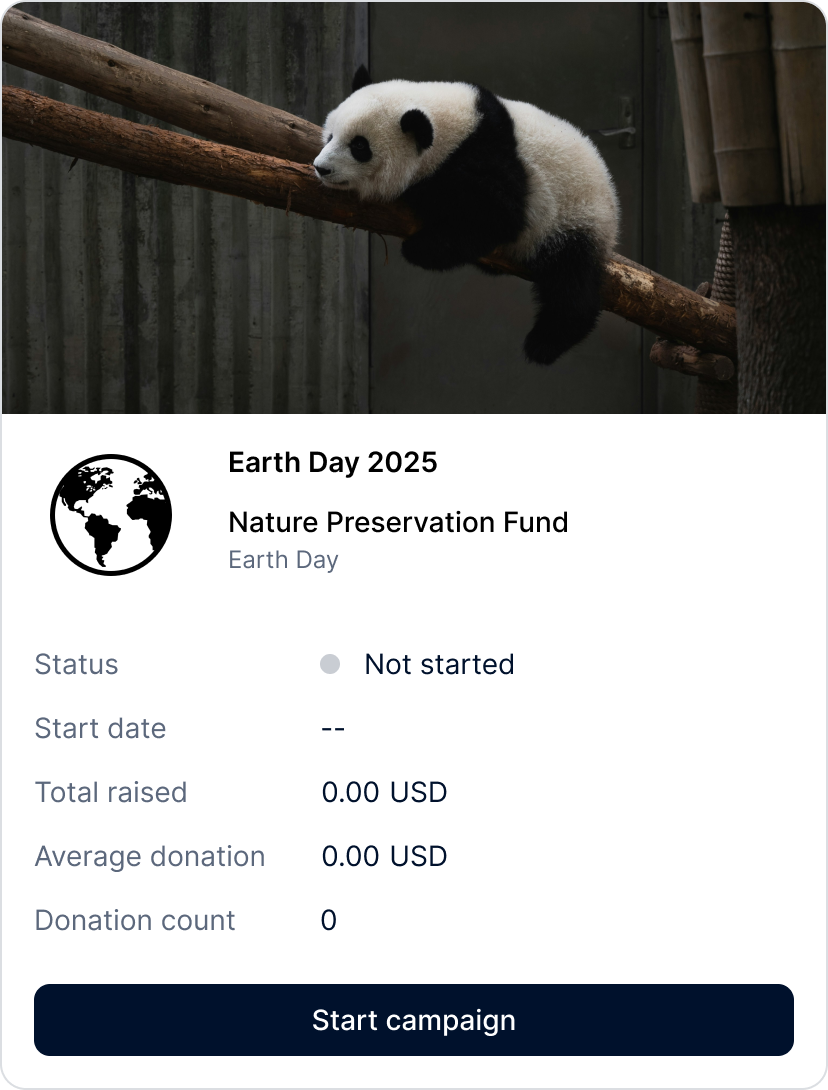
Campaign lifecycle management
When you first create a campaign, it starts out as inactive. This gives you a chance to edit or delete it. Whenever you are ready, you can start it. Once a campaign is active, you can still make edits or choose to end it. Keep in mind that a campaign that was ended cannot be re-started.
When you edit the campaign details or change the state of a campaign, those updates happen right away.
Donation options
With our Giving integration, you have the flexibility to choose a combination of donation type and interaction flow.
However, there are limitations to what choices are supported, depending on region and currency and payment method.
Donation type
You can present the following donation types to shoppers when they make a payment:
- Fixed amounts: up to three fixed donation amounts that shoppers can choose from when they make a payment. Your checkout needs to provide a selection mechanism, such as donation buttons for these amounts.
- Round up: let shoppers donate by rounding up the transaction amount of their purchase to the nearest full amount. Your checkout needs to show a round-up option.
The donation type is configured in your donation campaign.
Interaction flow
Your integration can present the option to donate at different moments in the checkout flow:
- Pre-checkout: the shopper can review the total transaction amount that includes the donation before completing the payment.
Pre-checkout donations are only possible with an API only integration.
- Post-checkout: the shopper can contribute to the donation campaign after completing the payment. This gives you flexibility to align Giving with your existing checkout process.
Supported countries/regions and currencies
Giving is available in the following countries/regions and currencies.
Supported currencies may vary between nonprofits depending on where they are registered.
| Country/region | Currencies |
|---|---|
| Asia-Pacific 1 | AUD, JPY, HKD, NZD, SGD |
| Europe | CHF, CZK, DKK, EUR, HUF, ISK, NOK, PLN, RON, SEK |
| United Arab Emirates | AED |
| North America | CAD, USD |
| Mexico | MXN |
| United Kingdom | GBP |
1Fundraising in Singapore is only possible for local nonprofits.
Supported payment methods
The following table show the payment methods that support donations with ecommerce payments. Note that additional payment methods are supported for point-of-sale donations.
| Payment method | Online donations |
|---|---|
| American Express |  |
| Apple Pay | |
| Cartes Bancaires | |
| China UnionPay | |
| Diners | |
| Discover | |
| Google Pay | |
| iDEAL | |
| JCB | |
| Mastercard | |
| Visa | |
Integrate with Giving
Choose your integration option for Adyen Giving:

Online payments
Accept donations online using your online payments integration.

In-person payments
Use Giving to let shoppers donate to a nonprofit in your store.
Plugins
Adobe Commerce
v10.0.0 or later
Formerly Magento 2
Render Giving on your Adobe Commerce online store.
Commerce Cloud
v25.3.0 or later
B2C Commerce and Quick Launch
Render Giving on your Salesforce Commerce Cloud online store.