


Read more
 Learn about Adyen Giving in your online checkout.
With Adyen Giving, your users can give shoppers the option to donate to a nonprofit organization as part of an in-store purchase. When a shopper chooses to donate, the donation is processed as a separate transaction. Adyen covers all fees and the donation amount is transferred to the nonprofit in full. This means you can split amounts and fees on the original transaction, but not on the donation transaction.
This page describes how to implement in-person donations after a donation campaign has been set up.
Requirements
Before you begin, take into account the following requirements, limitations, and preparations.
| Requirement | Description |
|---|---|
| Integration type | Adyen for Platforms merchants with a platform model, using a Terminal API integration with payment terminals or a Standalone solution. The terminals must use terminal software version 1.109 or later. Some terminals or features require software version 1.110 or later. |
| Webhooks | Subscribe to the Adyen Giving merchant webhook. |
| Hardware | See Supported terminals for a list of terminal models that support Giving, and the donation settings that are supported on these terminals. |
| Limitations | Make sure that you are using supported payment methods and supported regions and currencies. Also be aware that the terminal does not prompt for a donation after a gift card payment. |
| Setup steps | Before you begin, set up a donation campaign and learn how to activate and manage donation campaigns. See Create and manage donation campaigns. |
How it works
To enable your users to accept donations at the point of sale:
-
Choose a nonprofit and set up an account holder donation campaign in your Customer Area or using API calls. For instructions, see Create and manage donation campaigns.
-
Optionally configure a donation campaign logo to show as the standby screen on payment terminals.
-
To be able to inform shoppers about their donation, implement either or both of the following methods:
- Generate a shopper receipt for the donation. This is only possible if you use the two-step interaction flow.
-
Use Giving webhook messages to send shoppers a receipt by email or mobile messaging.
-
Start the campaign in your Customer Area, or using an API call. For instructions, see Create and manage donation campaigns.
After the next scheduled reboot of the payment terminals, the terminals automatically show the donation options from the campaign after every payment, except when the payment method is not supported by Adyen Giving.
(Optional) Configure a logo
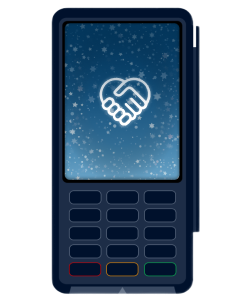
You can configure your terminal's standby screen to show a logo for your donation campaign. Follow the instructions in the Customer Area under Devices > Device settings > Customization > Logo.
| Model | Requirements |
|---|---|
| AMS 1 | Dimensions: 480 x 800 File size: max. 1 MB |
| P630 | Dimensions: 320 x 480 File size: max. 1 MB |
| e280 | Dimensions: 320 x 444 File size: max. 512 KB |
| e285p | Dimensions: 240 x 284 File size: max. 512 KB |
| M400 | Dimensions: 854 x 432 File size: max. 512 KB |
| M450 | Dimensions: 1280 x 800 File size: max. 100 MB |
| P400 Plus | Dimensions: 320 x 450 File size: max. 512 KB |
| S1E | Dimensions: 720 x 1280 File size: max. 1 MB |
| S1E2L | Dimensions: 720 x 1280 File size: max. 1 MB |
| S1F2 | Dimensions: 720 x 1280 File size: max. 1 MB |
| S1F2L | Dimensions: 720 x 1280 File size: max. 1 MB |
| SFO1 | Dimensions: 1280 x 800 File size: max. 100 MB |
| S1U2 | Dimensions: 720 x 1280 File size: max. 1 MB |
| V240m Plus | Dimensions: 320 x 450 File size: max. 512 KB |
| V400c Plus | Dimensions: 320 x 450 File size: max. 512 KB |
| V400m | Dimensions: 320 x 450 File size: max. 512 KB |
(Optional) Get the two-step donation response
If you are using the two-step flow in a Terminal API integration, you can retrieve the full response for the donation transaction through a transaction status request.
A reason to retrieve the donation response is that this includes a PaymentReceipt object that you can use to generate a shopper receipt for the donation.
It is only possible to retrieve the donation transaction response in the two-step flow.
-
Make a transaction status request, specifying:
-
The standard
SaleToPOIRequest.MessageHeaderobject, withMessageClassset to Service andMessageCategoryset to TransactionStatus.Parameter Required Description ProtocolVersion
3.0 MessageClassService MessageCategoryTransactionStatus MessageTypeRequest SaleIDYour unique ID for the POS system component to send this request from. ServiceIDYour unique ID for this request, consisting of 1-10 alphanumeric characters. Must be unique within the last 48 hours for the terminal ( POIID) being used.POIIDThe unique ID of the terminal to send this request to. Format: [device model]-[serial number].
-
The TransactionStatusRequest object with:
-
ReceiptReprintFlag: true -
DocumentQualifier: The receipt data you want to receive in the response. Can be one or both of:- CashierReceipt: cashier receipt, including signature data.
-
CustomerReceipt: shopper receipt.
-
MessageReference: this object identifies what you want to receive:Parameter Description MessageCategoryPayment. SaleIDAdyenGiving. If you specify this SaleIDand omit theServiceID, you will get the response for the latest donation made on the terminal that you route the transaction status request to.ServiceIDThe adyen_giving_service_idfrom the original payment response. Use this parameter to retrieve the response for a specific donation instead of the latest donation made on the terminal.
-
The example below shows how to check the status of a donation with the
adyen_giving_service_id8ha5925831. -
-
In the TransactionStatusResponse, note the
RepeatedMessageResponse. This contains the response for the donation transaction. Use theRepeatedMessageResponse.PaymentReceiptobject to generate a shopper receipt for the donation.
Giving webhook
You can get the outcome of each donation in a webhook message. This enables you to inform shoppers by email or mobile messaging about their donation, provided you have the shopper's contact details.
To receive these webhook messages, enable the Adyen Giving merchant webhook, which includes eventCode: DONATION.
For a successful donation, the event contains:
success: true.originalReference: use this value to associate the donation with the shopper's original transaction.