


Under the Worker Food Program (Programa de Alimentação do Trabalhador) known as PAT, many workers in Brazil receive meal and food vouchers as an employee benefit. PAT vouchers are digital or physical prepaid benefit cards that are loaded with new funds each month by the employer. These cards can be co-branded with a credit or debit card.
With Adyen terminals you can accept all major brands of PAT vouchers in a fully compliant way, regardless of whether you have a contract with the issuer of the voucher. There is no need to have separate terminals for different voucher brands.
This page describes how you can accept Brazilian meal and food vouchers, either using a UI provided by Adyen or by creating your own UI and implementing an additional field in your Terminal API requests.
Requirements
Before you begin, take into account the following requirements, limitations, and preparations.
| Requirement | Description |
|---|---|
| Integration type | A Terminal API integration with payment terminals or a standalone solution, using a specific software version depending on the PCI PTS compliance of the terminal model:
|
| Limitations | The standalone solution only supports the Adyen UI flow. There are compliance rules you must meet before you can accept meal or food voucher payments. |
| Setup steps | Before you begin:
|
Ways to accept meal vouchers
To accept meal and food voucher payments, you can use the following flows:
-
Adyen UI
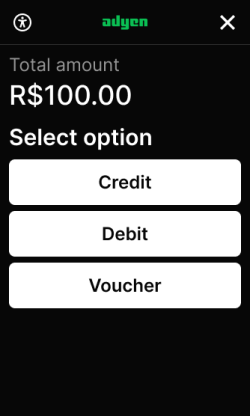
With this flow enabled, the terminal automatically shows a screen that lets the customer select if they want to make a credit, debit, or voucher payment. After selecting voucher, the customer taps, inserts, or swipes the meal or food voucher card to make the payment. This flow works for integrated and standalone payment terminals. -
Your own UI
You use your own custom POS UI or some other process to let the customer indicate they want to make a credit, debit, or voucher payment. You then send a Terminal API payment request specifying the chosen payment type as theselectedAccountType, in this case with a value of MEAL_VOUCHER. On the terminal, the customer then taps, inserts, or swipes the meal or food voucher card to make the payment.
Standalone payment terminals only support the Adyen UI flow. If your Adyen terminals are integrated with your POS system, you can use either flow.
Note that if the balance on a voucher is not enough for the amount due, the transaction is refused in both flows.
Adyen UI
To use the Adyen UI flow, you must contact our Support Team and let them know whether you want this to be enabled for a company or merchant account, a store, or a terminal. The Adyen UI flow works for integrated and standalone payment terminals.
When enabled, the flow is as follows:
-
You initiate a payment like you usually do.
-
The terminal asks the customer to choose if they want to pay by credit, debit, or voucher.
-
If the shopper selects voucher, the terminal asks the customer to tap, insert, or swipe.
For information about the flow if the shopper selects credit or debit, see Installments in Brazil.
-
The customer presents their voucher card to the terminal and completes the payment. If the payment amount is above the CVM limit, the customer may need to enter their PIN.
On an integrated terminal, when the voucher payment succeeds, the Terminal API AdditionalResponse includes:
- fundingSource=PREPAID.
- The voucher brand used for the payment, for example, paymentMethodVariant=elo_voucher_br.
Your own UI
As an alternative to the Adyen UI, you can design your own custom UI to collect the customer's preference. Your Terminal API request then needs to flag the transaction as a meal voucher payment. This flow does not apply to standalone terminals.
The flow at the point of sale is as follows:
- You collect the information about whether the customer wants to pay by voucher. You can do this in various ways, for example:
- Your store staff asks the customer.
- You collect the customer's preference on a secondary screen, for instance a tablet.
- You use input requests to collect the customer's preference on the payment terminal.
- You use logic to pass the collected information to your POS app, or your store staff enters this information manually into your POS app.
- Your POS app passes this information to the payment request.
- The customer presents their voucher card to the terminal and completes the payment.
When the transaction is approved, you receive a response containing the voucher brand used for the payment.
Make a meal voucher payment
If the customer has indicated they want to pay with a meal or food voucher:
-
Create a JSON object consisting of the
selectedAccountTypeparameter with the value MEAL_VOUCHER.See Interaction with installment parameters for more information.
-
Encode the JSON object to Base64. You will pass the resulting string in
SaleData.SaleToPOIData. -
Make a payment request, specifying:
-
The standard
SaleToPOIRequest.MessageHeaderobject, withMessageClassset to Service andMessageCategoryset to Payment.Parameter Required Description ProtocolVersion
3.0 MessageClassService MessageCategoryPayment MessageTypeRequest ServiceIDYour unique ID for this request, consisting of 1-10 alphanumeric characters. Must be unique within the last 48 hours for the terminal ( POIID) being used.SaleIDYour unique ID for the POS system component to send this request from. POIIDThe unique ID of the terminal to send this request to. Format: [device model]-[serial number]. -
The PaymentRequest object with:
Parameter Required Description PaymentTransaction.AmountsReqAn object with: Currency: the transaction currency.RequestedAmount: the final transaction amount.
SaleData.SaleToPOIDataYour Base64-encoded JSON object. SaleData.SaleTransactionIDAn object with: TransactionID: your reference to identify a payment. We recommend using a unique value per payment. In your Customer Area and Adyen reports, this shows as the merchant reference for the transaction.TimeStamp: the date and time of the request in UTC format.
-
-
In the PaymentResponse, check the
AdditionalResponse. For a successful voucher payment, this includes:- fundingSource=PREPAID.
- The voucher brand used for the payment, for example, paymentMethodVariant=elo_voucher_br.
Interaction with installment parameters
As described under Make a meal voucher payment, a meal or food voucher Terminal API payment request must include the selectedAccountType parameter with a value of MEAL_VOUCHER. Other allowed values are:
- CHEQUE to make a debit card payment.
- CREDIT to make a credit card payment.
If you also accept installments in Brazil, the Terminal API payment request needs to indicate if the transaction is a debit or credit payment. Depending on your implementation, your code can use the selectedAccountType parameter to do this, or use the TransactionConditions.DebitPreferredFlag parameter with a value of true for debit or false for credit.
If both DebitPreferredFlag and selectedAccountType (in Base64-encoded format) are included in a payment request, the selectedAccountType parameter takes precedence and its value is applied.
Testing
You can test voucher payments using Manual Key Entry (MKE). This does not simulate the voucher flow on the terminal, but does enable you to test how your integration and reconciliation handle voucher payments.
During MKE, enter a combination of card number, expiry date, and CVC as indicated in the following table:
| Card type | Card number | Expiry date | CVC | Payment method variant |
|---|---|---|---|---|
| Ticket (Edenred - Alimentação) | 6033 4225 5384 5003 | Any | 418 | ticket |
| Ticket (Edenred - Refeição) | 6026 5145 1530 4787 | Any | 265 | ticket |
| Pluxee (Alimentação) | 6033 8902 5703 4050 | 11/2034 | 164 | sodexo |
| Pluxee (Refeição) | 6060 7101 0440 1649 | 11/2032 | 507 | sodexo |
| Vale Refeição | 6370 3671 0000 0993 | 01/2032 | 520 | vale_refeicao_prepaid |
| Elo voucher | 5067 2300 0000 0002 | 03/2030 | 737 | elo_voucher_br |
| Visa voucher | 4058 8600 0000 0000 | 03/2030 | 737 | visa_voucher_br |
| Mastercard voucher | 2340 6300 0000 0009 | 03/2030 | 737 | mc_voucher_br |
Testing voucher payments with a physical card is possible for Visa voucher cards; contact Visa to get a test card.
Merchant Category Codes
To be allowed to accept meal and food voucher payments under the PAT program, your business must comply with certain rules. To mention a few:
- Your business must be registered with a National Classification of Economic Activities (CNAE) code that indicates your main economic activity is compatible with meal or food services.
- When you accept PAT vouchers, you are technically part of a public health program, and must adhere to all applicable sanitary and nutritional regulations.
-
Your Merchant Category Code (MCC) must be one of the following.
Category MCC Code MCC Description Food 5300 Wholesale Clubs Food 5411 Grocery Stores / Supermarkets Food 5422 Freezer / Meat Lockers Food 5441 Candy Stores Food 5451 Dairy Product Stores Food 5462 Bakeries Food 5499 Miscellaneous Food Stores (Default) Food 5811 Caterers / Food Distributors Culture 4722 Travel Agencies Culture 5311 Department Stores Culture 5733 Musical Instrument Stores Culture 5735 Record Stores Culture 5815 Digital Audiovisual Products Culture 5932 Antique Shops Culture 5942 Bookstores Culture 5943 Stationery Stores Culture 5994 Newsstands / News Providers Culture 7832 Cinemas / Motion Picture Production Culture 7841 Video Stores Culture 7911 Dance Studios, Schools, and Halls Culture 7922 Theaters, Theatrical Productions, and Shows Culture 7929 Bands, Orchestras, Misc. Entertainers Culture 7991 Tourist Attractions and Exhibits Culture 7996 Amusement Parks, Circuses, etc. Culture 7998 Aquariums and Zoos Culture 8699 Cultural, Union & Other Unclassified Associations Culture 9399 Government Services (Default) Meal 5812 Restaurants Meal 5813 Bars, Pubs, and Nightclubs Meal 5814 Fast Food Restaurants
If your main economic activity is not compatible with meal or food services, the voucher transaction will be declined by the issuer.
For more information, see the site of the Brazilian Ministry of Labor and Employment.