


Flexible Spending Account (FSA) and Health Savings Account (HSA) cards let US shoppers pay for eligible healthcare purchases with tax-advantaged funds. This page shows how to accept FSA/HSA card payments in your online payments integration. FSA/HSA payments are supported for US-issued Visa and Mastercard cards.
Requirements
Before you begin, take into account the following requirements, limitations, and preparations.
| Requirement | Description |
|---|---|
| Integration type |
|
| Limitations |
|
| Setup steps | Before you begin:
|
About FSA/HSA payments
FSA and HSA cards are US-only prepaid cards linked to tax-advantaged healthcare accounts. Shoppers can use them only for healthcare purchases that the US Internal Revenue Service (IRS) recognizes as eligible. To accept these cards for eligible everyday health products, you must prove that the purchase qualifies.
Auto-substantiation is the process that proves product eligibility automatically, so the shopper does not need to submit paper receipts for most healthcare-eligible purchases. However, a shopper's benefit provider might still ask them for proof of the purchase later. It relies on the Inventory Information Approval System (IIAS): you identify the healthcare-eligible items in the basket and send the eligible amount with the payment. The card issuer uses this data to approve the eligible amount.
This page covers the Everyday Health Products category. You send the healthcare amount data through IIAS auto-substantiation. This maps to the SIG-IS IIAS program, which needs both SIG-IS certification and this integration.
Not every business needs this integration. Adyen also supports two categories that do not send healthcare data: businesses on healthcare-only merchant category codes (Direct Medical Services), and pharmacies and drug stores that use the 90% Rule. The program that applies to your business, and whether you register with SIG-IS, depends on your business type and MCC. See SIG-IS registration and certification.
The following terms are used on this page:
| Term | Description |
|---|---|
| SIG-IS | The Special Interest Group for IIAS Standards. The industry body that manages the standards for FSA and HSA card acceptance and maintains the Eligible Product List. |
| IIAS | Inventory Information Approval System. You are responsible for implementing an IIAS that uses the SIG-IS Eligible Product List and meets the IIAS Merchant Certification requirements. Complete the applicable Merchant Self-Assessment/Checklist and certification with your acquirer. An IIAS combines inventory management and point-of-sale systems to confirm the eligibility of FSA/HRA purchases, generate transactions with the required IIAS information, and maintain an archive for IRS audits. See SIG-IS registration and certification. |
| Auto-substantiation | Automatic proof that a purchase is FSA/HSA-eligible, based on the healthcare amount data you send. This can remove the need for paper receipts during checkout, but the shopper's benefit provider might still ask for proof of the purchase. |
| Eligible amount | The part of the payment amount that is for eligible healthcare products, as you determine it from the SIG-IS Eligible Product List. |
How it works
To accept an FSA/HSA payment, you identify an eligible card, send the healthcare amount breakdown, and handle the result.
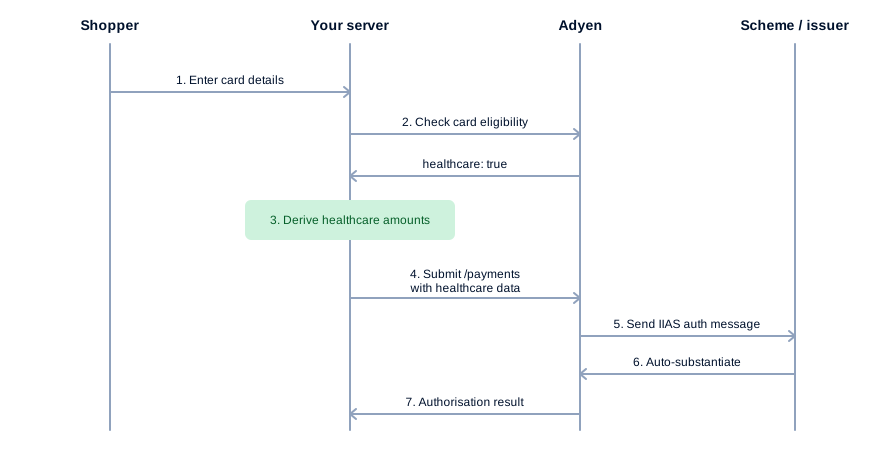
- The shopper enters their card details in your checkout.
- You check whether the card is healthcare-eligible. See Check card eligibility.
- You derive the healthcare-eligible amount, and any sub-amounts, from your inventory and the SIG-IS Eligible Product List.
- You submit the payment with the healthcare amount breakdown, and allow partial authorizations. See Send the healthcare amount data.
- Adyen sends the IIAS data to Visa or Mastercard in the authorization message.
- The card issuer auto-substantiates the eligible amount. The issuer authorizes the full amount, or a partial amount if the available balance is lower, and returns the authorization result.
- You handle the result, including partial authorizations, and complete the payment. See Handle the authorization result.
Check card eligibility
Before you show FSA/HSA options to the shopper, check whether the entered card is healthcare-eligible. Adyen returns a healthcare boolean at the card brand level. For a co-branded card, each brand entry carries its own value.
The healthcare field appears only when the card is healthcare-eligible. If the field is absent, treat the card as not eligible.
Send the healthcare amount data
When the card is healthcare-eligible, include the enhancedSchemeData.healthcare object in your /payments request. The presence of this object signals IIAS intent to Adyen, so you do not send a separate flag.
You must also allow partial authorizations on every FSA/HSA payment. An FSA/HSA card holds only the eligible healthcare balance, so the card might not cover the full payment amount. For more information, see Partial authorizations.
All amount fields are in minor units and use the currency of the top-level amount. For more information about the fields and the validation rules, see Healthcare fields reference.
To send the healthcare amount data:
-
Add the following to your
/paymentsrequest:- The
enhancedSchemeData.healthcareobject, withtotalHealthcareValueand any sub-amounts that apply. additionalData.allowPartialAuthset to true. This asks the issuer to authorize the available amount instead of declining the payment when the balance is lower than the payment amount.
In a Components or Drop-in advanced flow, your server adds these fields when it makes the
/paymentscall after theonSubmitevent.In this example, the payment amount is USD 60.00 and the healthcare-eligible amount is USD 45.00.
- The
-
Check the response to confirm the result of the payment. See Handle the authorization result.
Handle the authorization result
Because you allow partial authorizations, an FSA/HSA payment can return one of two successful result codes. An FSA/HSA card holds only the eligible healthcare balance, so the issuer often authorizes only part of the payment amount.
-
Read the
resultCodein the/paymentsresponse.- Authorised: the issuer authorized the full payment amount.
- PartiallyAuthorised: the issuer authorized only the amount available on the card. The
additionalData.authorisedAmountValuefield holds the authorized amount, in minor units. Do not treat this result as a failure.
-
Complete the payment based on the result.
- For PartiallyAuthorised, follow up to collect the remaining amount, for example by prompting the shopper for another payment method. For the follow-up options, see Partial authorizations.
- For all other result codes, take the matching action. See Payment result codes.
Confirm the card product
To confirm after the payment that a shopper paid with an FSA/HSA card, check the card product identifier in the AUTHORISATION webhook. Adyen returns this identifier in additionalData.cardProductId. This is supported for Visa and Mastercard only.
To receive cardProductId in your webhooks, you must enable it first. In your Customer Area, go to Developers > Additional data, then enable the card product ID field.
To confirm the card product:
-
In the AUTHORISATION webhook, read
additionalData.cardProductId. -
Compare the value against the following healthcare card products.
Scheme cardProductIdCard product Visa J3 FSA / HSA Card Mastercard MPX Prepaid Mastercard Flex Benefit Card Mastercard MHB Mastercard HSA Substantiated If
cardProductIdmatches one of these values, the shopper paid with an FSA/HSA card.
Healthcare fields reference
The enhancedSchemeData.healthcare object contains the total healthcare-eligible amount and optional sub-amounts. All amounts are integers in minor units, and use the currency of the top-level amount.
| Field | Required | Description |
|---|---|---|
totalHealthcareValue Integer |
 |
The total healthcare-eligible amount, in minor units. Must be greater than 0 and must not exceed the payment amount (amount.value). |
prescriptionValue Integer |
The prescription (Rx) amount, in minor units. | |
visionPrescriptionValue Integer |
The vision or optical prescription amount, in minor units. | |
dentalValue Integer |
The dental amount, in minor units. | |
otherMedicalValue Integer |
The eligible medical amount that the other sub-amounts do not cover, in minor units. |
Required for all transactions.  Required for particular setups, or issuers and card schemes.
  Recommended for all transactions, but not required.
Validation rules
Adyen validates the enhancedSchemeData.healthcare object before it processes the authorization. The amounts must meet the following rules:
totalHealthcareValuemust be greater than 0.totalHealthcareValuemust not exceed the payment amount (amount.value).- The sum of the four sub-amounts (
prescriptionValue,visionPrescriptionValue,dentalValue, andotherMedicalValue) must not exceedtotalHealthcareValue.
Errors
If the amounts do not meet the validation rules, Adyen rejects the request with HTTP 422 and the error InvalidFieldWithReason.
| Condition | Result |
|---|---|
totalHealthcareValue is 0 or a negative value. |
HTTP 422, InvalidFieldWithReason. |
totalHealthcareValue exceeds the payment amount. |
HTTP 422, InvalidFieldWithReason. |
The sum of the four sub-amounts exceeds totalHealthcareValue. |
HTTP 422, InvalidFieldWithReason. |
To resolve an error, adjust the amounts so that they meet the validation rules, then send the request again.
Test and go live
Use the following test cards to make test FSA/HSA payments. Both cards are healthcare-eligible.
| Card number | Card scheme | Issuing country/region | Expiry date | Card security code |
|---|---|---|---|---|
| 4001 2300 0000 0004 | Visa | US | 12/2049 | 737 |
| 2292 2400 0000 0005 | Mastercard | US | 12/2049 | 737 |
Use the following scenarios to verify your integration before you go live.
| Scenario | Expected result |
|---|---|
Submit enhancedSchemeData.healthcare with sub-amounts (Visa, v72). |
Authorised. |
Submit enhancedSchemeData.healthcare with sub-amounts (Mastercard, v72). |
Authorised. |
Submit enhancedSchemeData.healthcare with totalHealthcareValue only (v72). |
Authorised. |
| Trigger a partial authorization on a healthcare payment. See Partial authorizations. | PartiallyAuthorised, with the authorized amount in additionalData.authorisedAmountValue. |
Submit a totalHealthcareValue of 0. |
HTTP 422 validation error. |
Submit a totalHealthcareValue that exceeds amount.value. |
HTTP 422 validation error. |
Submit sub-amounts that sum to more than totalHealthcareValue. |
HTTP 422 validation error. |